
How to Add Discount Vouchers in Magento (2026)
If you’ve ever wanted to run a seasonal promotion but weren’t sure how to add discount vouchers in Magento without calling your developer, you’re in exactly the right place. This guide walks you through the whole process in plain English — no jargon, no code, no panic. Magento (the platform behind thousands of independent UK retail stores) has a built-in feature for creating voucher codes, and once you know where to find it, you can set up a promotion in under ten minutes.
Whether you’re planning a summer clearance, a loyalty reward for your regulars, or a flash deal over a bank holiday weekend, this is something you can genuinely handle yourself.
Why Voucher Codes Matter for Independent UK Retailers
Discount vouchers aren’t just for the big supermarkets. According to Statista research on UK coupon usage, a significant proportion of British consumers actively look for discount codes before completing a purchase. If your store doesn’t offer them, a competitor’s store probably does.
Imagine you run a homeware boutique in Leeds. You’ve got a strong Magento-powered store, a loyal following, and a batch of overstocked candles heading into July. A well-timed voucher code — say, SUMMER15 for 15% off — shared via your newsletter could clear that shelf and bring buyers back again. The good news? You don’t need to ring your developer to do it. Magento coupon setup for small retailers is genuinely accessible once someone shows you around the admin panel.
Running your own promotions also means you’re nimble. You can react to a quiet Tuesday, reward a returning buyer, or match a competitor offer — without waiting days for a developer response. That kind of independence is worth a great deal when you’re running a lean operation.
If you’d like a broader overview of managing your store confidently, have a read of our guide on Magento admin tips for small business owners.
Understanding Magento Price Rules: The Basics
Before we get into the steps, it helps to understand one key idea. In Magento, all promotions — including voucher codes — are created using something called a Cart Price Rule. Think of this as a set of instructions you give the platform: “If a buyer adds £X worth of items and enters this code, apply this discount.”
Magento cart price rules explained simply: they’re conditional deals. You decide the conditions (minimum spend, specific products, dates) and the outcome (a percentage off, a fixed £ amount off, or free delivery). Voucher codes are just the key that unlocks a cart price rule you’ve already set up. That’s genuinely all there is to it.
You’ll find these inside your Magento admin panel — the behind-the-scenes area where you manage your store. If you’ve added a product or updated a description before, you’ve already been in the right neighbourhood. Magento price rules for beginners do have a few options to navigate, but this guide focuses on the most common use case: a straightforward percentage or fixed-amount voucher that a buyer types at checkout.
It’s also worth knowing that Magento lets you generate either a single shared code (e.g. SUMMER15 — everyone uses the same one) or a batch of unique codes (useful for loyalty mailings where each buyer gets their own). We’ll cover both.
How to Add Discount Vouchers in Magento: Step-by-Step
Right, let’s get into it. Here’s exactly how to add discount vouchers in Magento — broken down into clear steps you can follow right now, without touching a single line of code. This works in Magento 2 (the current version most stores use in 2026).
- Log into your Magento admin panel. Head to your store’s admin URL (usually something like yourstore.co.uk/admin) and sign in with your credentials. If you’ve forgotten your login, your hosting provider or the agency that built your store can reset it for you.
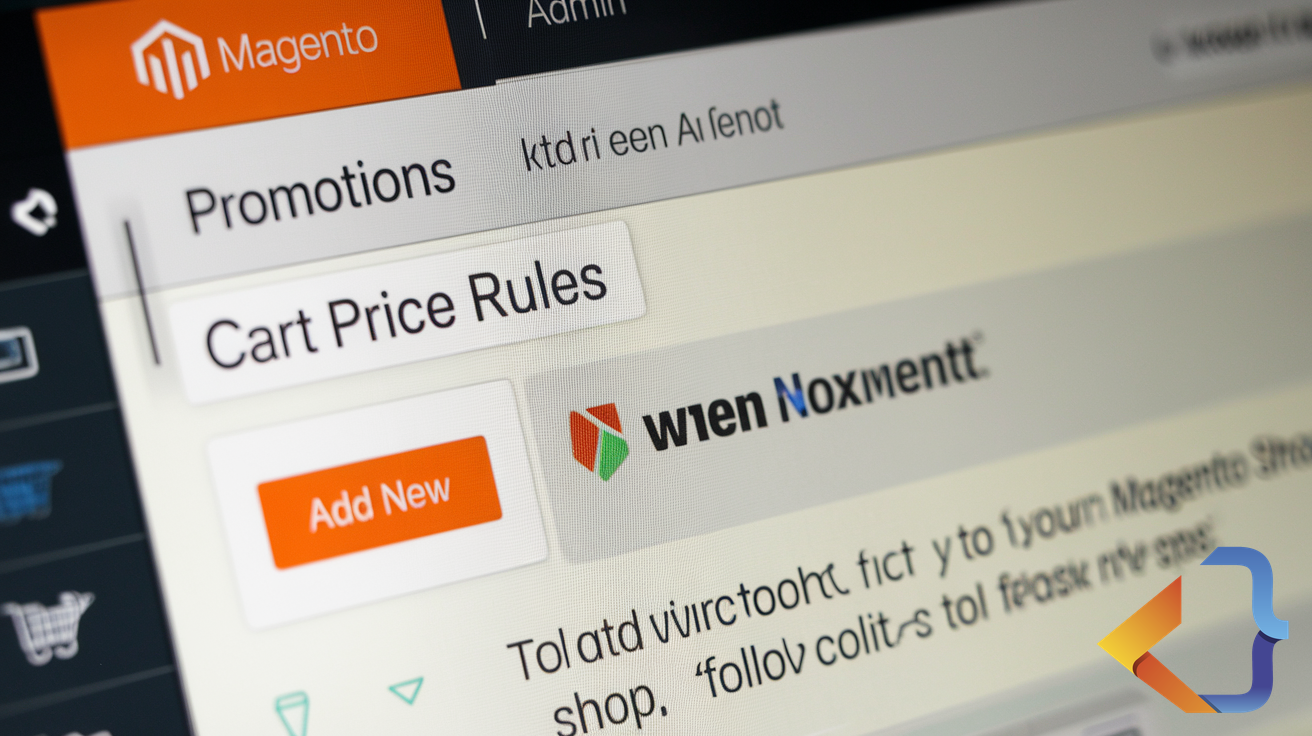
- Navigate to Marketing, then Promotions, then Cart Price Rules. In the left-hand menu, click Marketing. Under the Promotions section, you’ll see Cart Price Rules. This is where all your Magento promotional pricing rules live. Click it to see any existing rules, then click the orange Add New Rule button in the top-right corner.
- Fill in the Rule Information tab. Give your rule a name (this is just for your reference — buyers won’t see it). Something like “Summer 2026 – 15% Off” works perfectly. Set the Status to Active, choose the relevant website and buyer group (usually General covers all buyers), and set your start and end dates. Limiting the dates is important — it means the code automatically stops working after your promotion ends, so you don’t have to remember to switch it off.
- Set your Conditions (optional but useful). Click the Conditions tab. Here you can add rules like “only apply this discount if the cart total is £30 or more.” You don’t have to add conditions — leaving this blank means the code works on any purchase. But conditions help you protect your margins. For example, a minimum spend of £25 ensures you’re not giving away discounts on tiny orders.
- Define the discount on the Actions tab. This is where the actual deal gets set. Click the Actions tab. Under Apply, choose your discount type from the dropdown: Percent of product price discount (e.g. 15% off), Fixed amount discount (e.g. £5 off), or Fixed amount discount for whole cart. Enter the discount amount in the Discount Amount field. If you want to offer free delivery alongside the discount, toggle Free Shipping to Yes.
- Configure your coupon code. Still on the Actions tab area, scroll back up to the Rule Information section and find the Coupon field. Change it from No Coupon to Specific Coupon. A text box will appear where you type your code — for example, SUMMER15. Keep it short, memorable, and easy to type on a phone. If you want unique codes for a loyalty mailing, select Auto-generated instead, and Magento will create a batch for you under the Manage Coupon Codes tab.
- Save and test your rule. Click the orange Save Rule button. Then open your store in a separate browser tab, add a product to your basket, and enter the code at checkout to confirm it applies correctly. Always test before you share the code publicly — it takes thirty seconds and saves embarrassment later.
That’s the full process for Magento offer codes without a developer. Seven steps, all done through menus and dropdown boxes. No code written, no developer invoice raised.
A Few Tips to Make Your Promotions Work Harder

Creating the code is only half the job. Here are a few practical pointers to make sure your voucher campaign actually delivers results.
Keep codes simple. SUMMER15 is good. XJULY2026SAVE15PCT is not. Buyers type these on mobile devices, often at the last moment. The easier the code, the fewer abandoned attempts you’ll get.
Set a usage limit. In the Rule Information tab, you’ll find a field called Uses Per Coupon — this caps how many times the code can be redeemed in total. There’s also Uses Per Customer, which limits how many times one individual can use it. Both are worth setting to prevent the code circulating beyond your intended audience. You can read more about responsible promotional pricing in the UK Competition and Markets Authority guidance on pricing practices.
Think about timing. UK buyer behaviour tends to spike around bank holidays, back-to-school periods, and the run-up to Christmas. A well-timed voucher that aligns with natural buying moments outperforms a random mid-month promotion almost every time. The Guardian’s consumer affairs coverage regularly highlights the dates when UK consumers are most likely to spend.
Pair your code with an email or social post. A voucher nobody knows about helps nobody. Once your code is live, share it through your newsletter, your social channels, or even a physical leaflet if your buyers come into a premises. The promotion itself is free to create — putting it in front of the right people is what makes it valuable.
For further context on how UK shoppers engage with online promotions, Wikipedia’s overview of coupon history and usage is a surprisingly interesting read.
Common Mistakes to Avoid
Even with the best intentions, a few things can trip you up. Here’s what to watch for when setting up Magento promotional pricing rules.
Forgetting to activate the rule. The Status field defaults to Inactive in some Magento setups. Double-check it’s set to Active before you go live, otherwise the code simply won’t work and buyers will assume something is broken — which is frustrating for everyone.
Not setting an end date. A code without an expiry can linger on deal-hunting forums for months after your promotion ends. Always set a finish date. It protects your margins and keeps your promotions feeling exclusive.
Applying the rule to the wrong buyer group. Magento lets you target promotions at specific buyer groups — for example, wholesale accounts vs. retail buyers. If you’re running a promotion for all buyers, make sure the rule applies to the General group and NOT LOGGED IN (for guest buyers) as well. Missing the guest group is one of the most frequent errors we see.
If you’d like to understand how buyer groups and accounts work more broadly, our article on Magento customer groups explained covers that clearly.
What to Do If Something Goes Wrong
Most issues with Magento cart price rules come down to a setting that’s been missed rather than a technical fault. If your code isn’t applying at checkout, run through this quick checklist.
Is the rule Status set to Active? Are today’s date and time within the rule’s start and end dates? Is the buyer’s cart meeting any conditions you set (e.g. minimum spend)? Is the code typed exactly as entered, including correct capitalisation? Magento codes are not case-sensitive by default, but it’s worth double-checking your setup.
If you’ve worked through all of that and something still isn’t right, it may be a caching issue (where Magento is showing an old version of its own rules). In that case, go to System > Cache Management in your admin panel and click Flush Magento Cache. That resolves the vast majority of unexpected behaviour after saving new rules.
For genuinely tricky setups — multiple overlapping promotions, tiered discounts, or integrations with third-party loyalty platforms — it’s reasonable to bring in a developer for that specific piece of work. But for everyday voucher campaigns, Magento coupon setup for small retailers really is something you can own yourself. The UK government’s business support hub also has useful resources on running compliant promotions if you’d like to brush up on the legal side of discounting.
Next Steps: Your Action for Today
Here’s one concrete thing you can do right now. Log into your Magento admin panel, navigate to Marketing > Promotions > Cart Price Rules, and create a test rule with a simple code — something like TEST10 for 10% off, with no conditions and no end date. Don’t publish it anywhere. Just go through the steps, save the rule, and test it on your own store. Once you’ve done it once, the process becomes second nature.
Understanding how to add discount vouchers in Magento is one of those skills that pays for itself the very first time you use it. No developer required, no delay, and no unnecessary expense.
If you’d like a hand setting up more complex Magento cart price rules — or if you want someone to review your current promotional setup and make sure everything is working as it should — the team at VeCar Digital Programming is always happy to help. We work with independent UK retailers every day, and we’re here when you need us. Find out how we support small Magento stores or get in touch directly to have a chat.
Frequently Asked Questions
Can I create discount vouchers in Magento without hiring a developer?
Yes. Magento’s built-in Cart Price Rules feature lets you create and manage discount vouchers entirely through the admin panel. You can set percentage or fixed discounts, usage limits, expiry dates, and customer eligibility without writing any code. The guide walks UK independent retailers through each step in plain English, making it accessible even without technical experience.
How do I limit a discount voucher to specific customer groups in Magento?
Within Cart Price Rules, you can restrict vouchers to specific customer groups such as wholesale buyers, registered trade accounts, or VIP clients. Navigate to the Conditions tab when creating your rule and select your target customer group. This is particularly useful for B2B retailers wanting to offer exclusive trade discounts without making them publicly available.
Can I set a minimum order value before a discount voucher applies?
Yes. Magento allows you to set minimum order thresholds within your Cart Price Rule conditions. This ensures a voucher only activates when the cart reaches a specified subtotal. For B2B retailers, this is useful for incentivising larger orders while protecting margins on smaller transactions. You configure this under the Conditions section of your rule.
How do I prevent a discount voucher from being used multiple times by the same customer?
Magento lets you control voucher usage limits at two levels: total uses across all customers and uses per individual customer. Set ‘Uses per Customer’ to 1 to prevent repeat redemptions. You can also cap total redemptions site-wide. These settings appear in the Manage Coupon Codes section when configuring your Cart Price Rule.
Will Magento discount vouchers work alongside other promotions already running on my store?
By default, multiple Cart Price Rules can stack in Magento. However, you can control this using the ‘Stop Further Rules Processing’ option on each rule. Enable it to prevent a voucher combining with other active promotions. For B2B stores running trade promotions simultaneously, carefully reviewing rule priority settings ensures discounts apply correctly without unintended combinations.