

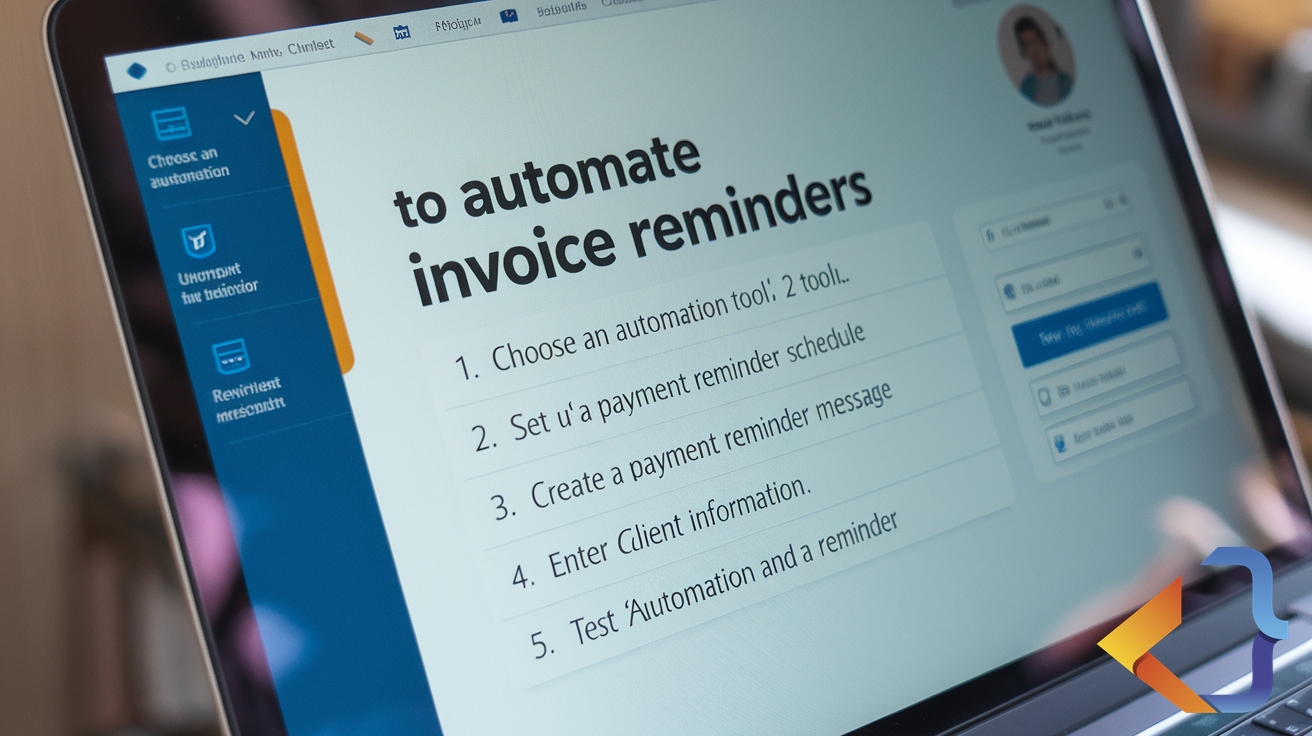
How to Automate invoice Reminders: 5 Easy Steps
If you’ve ever spent a Friday afternoon drafting yet another polite nudge to a client who still hasn’t paid, you’ll know exactly how draining it is. How to automate invoice reminders for small business is one of the most searched questions among UK sole traders in 2026 — and honestly, it’s no surprise. Late payment remains a serious issue for small businesses across the UK, and the hours lost to manual late payment chasing UK add up fast. The good news? You do not need expensive accounting software or a developer to fix this. You just need the tools you likely already have, and a bit of a plan.
Why Manual Invoice Chasing Is Costing You More Than You Think
Picture this: you run a small graphic design consultancy in Bristol. You’ve delivered the project, sent the invoice, and heard nothing back. Two weeks pass. You write a polite follow-up. Another week goes by. You write another one, slightly less polite. Sound familiar?
That back-and-forth can easily swallow two to three hours every single month. Multiply that across a full year, and you’re looking at over a full working week spent on nothing but late payment chasing UK. Time you could have spent on actual paid work, or simply switching off at the weekend.
Beyond the time, there’s the psychological drain. Chasing money feels awkward, especially with long-standing clients. And the longer an invoice sits unpaid, the harder it becomes to reduce overdue invoices sole trader-style — where you’re essentially a one-person finance department juggling everything else at the same time.
The solution is not to buy a new piece of software. It’s to build a simple, repeatable payment reminder workflow setup using tools you already know. Let’s walk through exactly how to do that.
What You’ll Need Before You Start

Before jumping into the steps, it helps to know what’s already in your toolkit. The approach in this article works with free or low-cost tools most small business owners already use. You do not need to write any code. You do not need to understand how software is built. You just need an email account — Gmail or Outlook both work well — and ideally a basic invoicing tool such as FreeAgent, Wave, or even a simple spreadsheet paired with a PDF template.
If you already use a tool like Zapier (a service that connects different apps together automatically, without any coding), even better. If not, don’t worry — we’ll explain a free alternative in Step 3.
The core idea is simple: you set up a sequence of automated follow-up emails unpaid invoices, triggered by a date or an action, so the reminders go out without you lifting a finger. Think of it like setting a recurring alarm, except the alarm sends a professional email on your behalf.
For a deeper look at how automation can support your wider operations, have a read of our guide on workflow automation for UK small businesses.
How to Automate Invoice Reminders for Small Business: 5 Easy Steps
Here is a clear, numbered sequence you can follow. Each step builds on the last, and you can stop at any point once you’ve reached a level that feels comfortable.
Step 1: Create a simple invoice tracking log. Before you can automate anything, you need to know what’s outstanding. Set up a basic spreadsheet — Google Sheets is free — with columns for: client name, invoice number, amount owed (in £), date issued, and due date. This gives your automation something to work from. You do not need anything fancy here; a clean, consistent list is all that matters.
Step 2: Write three reminder email templates. Draft three short, professional emails: a friendly reminder sent on the due date, a firmer follow-up sent seven days later, and a final notice sent at the fourteen-day mark. Keep each one brief and polite — two short paragraphs is plenty. Save these as templates inside Gmail (using the ‘Templates’ feature, which is free) or Outlook (under ‘My Templates’). This is the backbone of your automated follow-up emails unpaid invoices sequence.
Step 3: Connect your spreadsheet to your email using a free automation tool. This is where the magic happens — and it’s simpler than it sounds. A tool called Make (formerly Integromat) has a generous free plan and lets you connect Google Sheets to Gmail without any coding. You set a rule: if the due date in your spreadsheet has passed and the ‘Paid’ column is still blank, automatically send your first reminder template. Workflow automation like this used to be reserved for large organisations, but in 2026 it’s entirely accessible to sole traders and micro-businesses.
Step 4: Schedule your follow-up sequence with delays built in. Inside Make (or Zapier if you prefer), you can add time delays between each email. So after the first reminder fires on the due date, the tool waits seven days, checks whether the invoice is still unpaid, and sends the second template. Then waits another seven days and sends the third. This is the core of a proper payment reminder workflow setup — it runs quietly in the background while you get on with your day. BBC Business has reported extensively on how late payments disproportionately affect freelancers and sole traders; automating this process is one of the most direct ways to fight back.
Step 5: Mark invoices as paid to stop the sequence automatically. The final step is the most important one to get right. When a client pays, you simply update the ‘Paid’ column in your spreadsheet. Your automation checks this column before sending each email, so it will not chase a client who has already settled up. This tiny step protects your client relationships and ensures your cash flow improvement freelancer UK system does not embarrass you by chasing someone who paid days ago. Review your log once a week — perhaps on a Monday morning — and keep it tidy.
A Real-World Example: A Freelance Photographer in Leeds
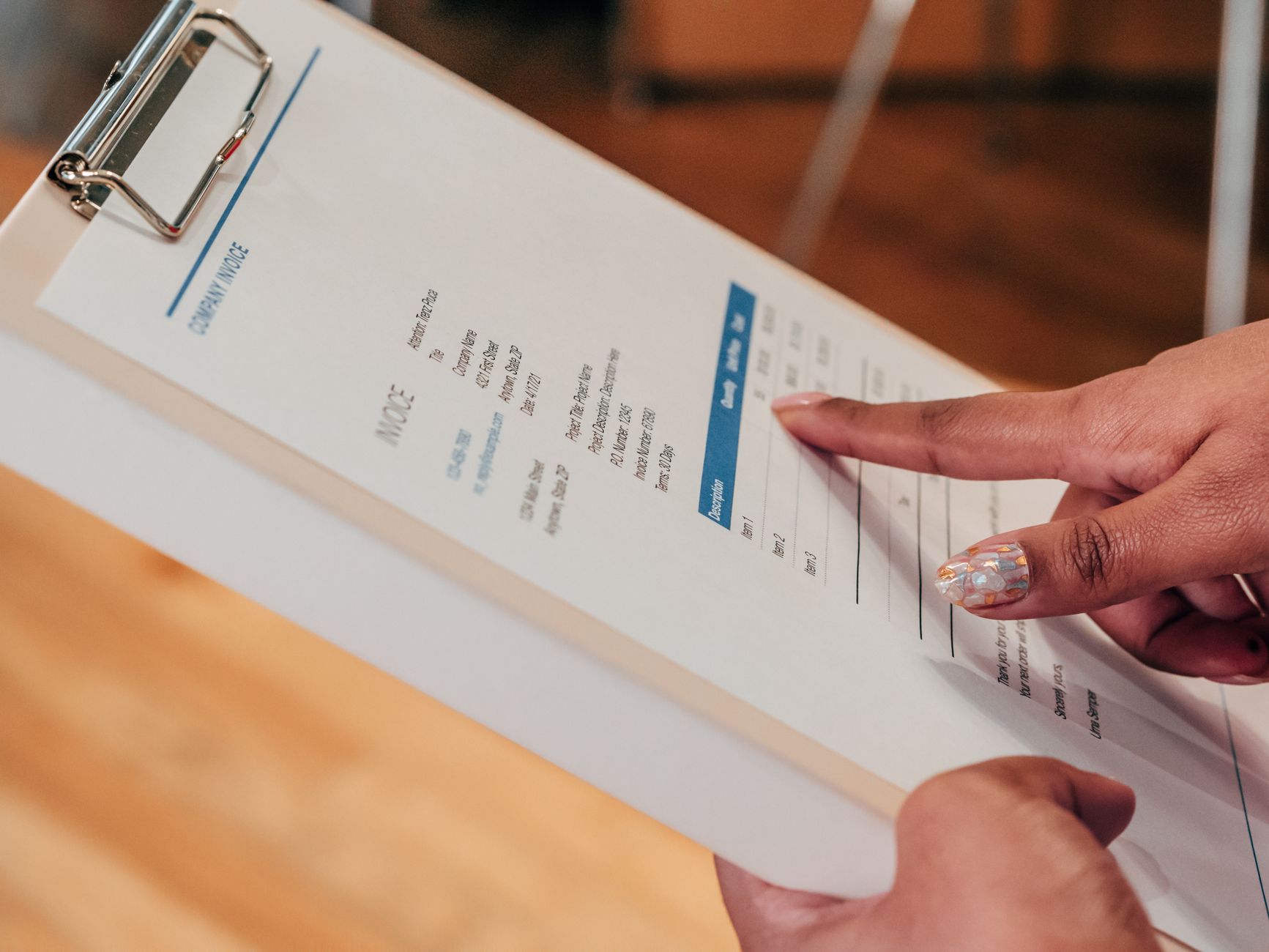
Imagine you’re a freelance photographer based in Leeds. You shoot weddings and corporate events, typically sending between eight and fifteen invoices a month. Before setting up this system, you were spending roughly ninety minutes every week writing chase-up emails, often feeling uncomfortable about it.
After following the five steps above, your reminders now go out automatically on day one, day seven, and day fourteen after each due date. You updated the spreadsheet twice last week. That’s it. Your reduce overdue invoices sole trader goal went from aspiration to reality in an afternoon.
You also noticed something unexpected: clients are actually paying faster. The consistent, professional tone of the automated emails — sent promptly every time — signals that you run a tight operation. And there’s plenty of evidence that smaller businesses which use structured processes are perceived as more professional by clients, regardless of their size.
If you’re curious about other ways to streamline your client communication, our post on client communication tools for small businesses is worth a read too.
Common Questions About Automating Invoice Reminders
Will automated emails feel impersonal to my clients?
Only if you write them that way. A well-crafted template that uses the client’s first name and references the specific invoice number feels just as personal as something written from scratch. In fact, because you’re not writing it at the end of a long, stressful day, the tone is often warmer and more consistent than a manually typed message.
Is this approach legal under UK data protection rules?
Yes. Sending a payment reminder to a client is a legitimate business communication related to a contract you both entered into. You are not marketing to them unsolicited; you are chasing a debt they agreed to pay. The Information Commissioner’s Office (ICO) provides clear guidance for small organisations on what constitutes legitimate processing of personal data under UK GDPR. Standard invoice reminders fall well within acceptable use.
What if I use invoicing software already?
Many invoicing tools — FreeAgent, Xero, QuickBooks — have built-in reminder features. If yours does, use them. The five-step approach in this article is designed for those who don’t have that feature, or whose current tool makes it complicated to configure. The principle of how to automate invoice reminders for small business remains the same either way: define your sequence, write your templates, and let the system run.
What You Can Do Today
Here is your single concrete action for today: open a new Google Sheet and create your invoice tracking log. Just five columns — client name, invoice number, amount (£), date issued, due date, and a ‘Paid?’ column. Populate it with your current outstanding invoices. That’s it. Once that list exists, the rest of the steps in this article become straightforward to build on top of it.
Setting up how to automate invoice reminders for small business does not require a big investment of time or money. It requires one afternoon and a clear plan. The hours you get back — and the cash flow improvement freelancer UK owners experience once overdue invoices drop — are absolutely worth it.
If you’d like help building a more tailored version of this system — or connecting it to other parts of how your business operates — the team at VeCar Digital Programming would love to have a chat. We specialise in helping UK small business owners put practical, no-fuss digital solutions in place. Get in touch with us here and let’s see what we can put together for you.
Frequently Asked Questions
What tools do I need to automate invoice reminders?
Most accounting or invoicing platforms like QuickBooks, FreshBooks, or Wave have built-in automation features. You can also use tools like Zapier to connect your invoicing software with email platforms. No coding knowledge is required — most solutions offer simple drag-and-drop or template-based setups that any business owner can configure within minutes.
How early should I send automated invoice reminders?
A proven sequence includes a friendly reminder 3–5 days before the due date, a follow-up on the due date itself, and escalating reminders at 7, 14, and 30 days overdue. Starting early reduces awkwardness and increases on-time payment rates without damaging client relationships.
Will automated reminders damage my relationships with clients?
Not if they’re written professionally and warmly. Personalize each template with the client’s name, invoice number, and amount. Frame reminders as helpful notifications rather than demands. Most clients appreciate the prompt since late payments are often due to oversight, not intention.
Can I customize automated reminder messages for different clients?
Yes. Most invoicing platforms allow you to create multiple reminder templates and assign them to specific clients or payment tiers. For example, you might use a softer tone for long-term clients and a more direct approach for new or repeatedly late payers.
How do I stop reminders from sending once an invoice is paid?
Reputable invoicing tools automatically detect payment status and halt reminder sequences once an invoice is marked paid. Always confirm this feature is active in your platform settings to avoid sending reminders after payment — which can frustrate clients and undermine your professional credibility.